A Windows computer can feel fast and responsive when it is new, but performance often changes over time. As you install applications, download files, browse the internet, and use different programs every day, your system can gradually collect temporary data and unnecessary files. Too many startup applications, unused software, browser caches, and large files can also make your computer feel slower than it should.
The good news is that you do not always need to buy a new computer to improve everyday performance. Regular maintenance can make a noticeable difference, especially when your PC is struggling with limited storage or too many background processes. A simple maintenance routine that combines cleaning, optimization, and software management can help keep your Windows system in better shape.
In this guide, we will explore practical ways to maintain a Windows PC, free up storage, manage unwanted programs, and improve the overall computing experience.
Why Does a Windows PC Become Slow Over Time?
There is rarely one single reason why a computer becomes slower. In many cases, several small issues build up gradually.
For example, Windows and installed applications may create temporary files and caches during normal use. These files can be useful for a short time, but some may remain on your drive after they are no longer needed. Browsers also store cached data, while software installers can leave behind temporary files.
Another common issue is the number of programs that launch automatically when you start Windows. Some applications add themselves to the startup process, even though you may not need them immediately. When too many programs start at once, your computer may take longer to become ready.
Unused applications can also consume valuable storage. Even if you rarely open them, they may leave files, services, extensions, or other components behind.
This is why good PC maintenance should involve more than simply deleting a few files. It is better to look at your computer as a complete system and address different sources of clutter one by one.
Start With a Regular PC Cleaning Routine
One of the easiest ways to begin maintaining your computer is to regularly remove unnecessary data. A reliable PC cleaner can help simplify this process by scanning for different types of unwanted files and helping you decide what can safely be removed.
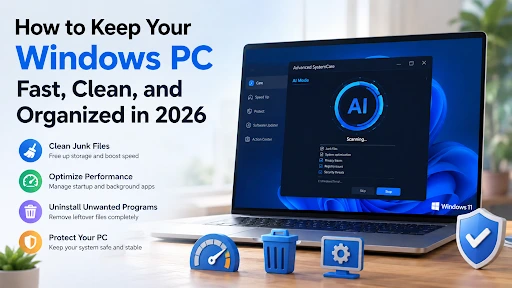
Advanced SystemCare is designed as an all-in-one Windows PC health and optimization solution. According to IObit’s official information, its cleaning features can identify items such as temporary files, system logs, caches, and other unnecessary data. Its AI Mode is also designed to create a personalized cleaning approach based on the condition of the system.
This type of automated approach can be useful for people who do not want to manually search through multiple folders to find unnecessary files.
However, cleaning should always be done carefully. Important personal documents, photos, and work files should never be deleted simply because they occupy storage space. Before using any automated maintenance feature, it is wise to review the available options and keep backups of important data.
Find Out What Is Using Your Storage
A computer can become difficult to manage when the storage drive is nearly full. When you have limited free space, you may notice problems such as difficulty installing new software or saving large files.
Instead of deleting files randomly, start by identifying what is taking up the most space. Large videos, old installers, duplicate downloads, and unused applications are often responsible for significant storage consumption.
Advanced SystemCare includes a Large File Finder that can help users identify files consuming substantial disk space. It also provides disk-cleaning functionality intended to analyze and remove unnecessary files. These tools can make it easier to understand where your storage is going before deciding what to remove.
A good approach is to review large files periodically. If you have old videos or documents that you still need, move them to an external drive or another secure storage location rather than deleting them permanently.
Remove Programs You No Longer Use
Installing software is easy, but uninstalling it does not always mean every related file disappears. Some applications can leave behind folders, settings, extensions, or other leftover data.
This is where a dedicated uninstall tool can be helpful. Instead of relying only on the standard Windows uninstall process, specialized software can provide additional options for removing unwanted programs and cleaning up related leftovers.
IObit Uninstaller is designed specifically for managing and removing unwanted software. Its official product information highlights features for uninstalling programs and cleaning leftover files. The software also includes capabilities intended to detect bundleware and improve the process of removing unwanted applications.
This can be particularly useful when you regularly test different applications or have accumulated software that you no longer need.
Before removing any program, however, make sure you know what it does. Some applications are connected to hardware, Windows components, or other software. If you are unsure about a program, research it first instead of uninstalling it immediately.
Manage Startup Programs
If your computer takes a long time to become usable after you turn it on, startup applications may be part of the problem.
Many programs automatically launch when Windows starts. While some startup applications are necessary, others may not need to run immediately.
Advanced SystemCare includes a Startup Optimizer designed to analyze startup programs and allow users to disable or delay unnecessary applications. Reducing the number of programs competing for system resources during startup can help make the boot process feel more efficient.
You should still be careful when changing startup settings. Avoid disabling security software or essential Windows services unless you understand their purpose. If you are unsure, leave the item enabled.
Keep Your Software Updated
Software updates are not only about getting new features. Developers regularly release updates to fix bugs, improve compatibility, and address security issues.
Old software can sometimes create unnecessary problems, especially when it no longer works properly with newer versions of Windows or other applications.
Make it a habit to check for updates for Windows, browsers, productivity tools, and other frequently used programs. Advanced SystemCare also promotes software updating and security-related maintenance as part of its broader system optimization features.
At the same time, avoid installing updates from suspicious websites or unknown sources. Whenever possible, download software and updates directly from the official developer.
Clean Up Browser Data
Web browsers can accumulate a large amount of temporary information. Cached files, browsing history, cookies, and extensions can build up as you use the internet.
Some browser data is useful because it can help websites load faster or remember your preferences. However, unnecessary data can accumulate over time.
Review your browser settings regularly and remove data you no longer need. You should also check your browser extensions. If you have installed extensions that you no longer use, removing them can simplify your browser environment.
Privacy is another reason to review browser data. If you use a shared computer, clearing certain browsing information can help prevent other users from seeing your activity.
Do Not Ignore Security
Performance and security are closely connected. Malware, suspicious software, and unwanted processes can affect how a computer operates.
A good maintenance routine should therefore include reliable security protection. Keep Windows security features active and use reputable security software when appropriate.
Advanced SystemCare’s official product information includes features related to privacy and protection, such as cleaning online traces and monitoring for suspicious activity. However, users should understand that a system optimization tool is not automatically a replacement for dedicated antivirus protection. IObit itself distinguishes Advanced SystemCare as a system optimizer, while its broader product range includes dedicated security solutions.
The safest approach is to maintain your operating system, use trusted security tools, and avoid downloading unknown files.
Be Careful With Registry Cleaning
Registry cleaning has been a popular feature in PC maintenance software for many years. Some optimization tools offer registry scanning to identify invalid or outdated entries.
Advanced SystemCare includes a Registry Cleaner as one of its maintenance features.
However, registry changes should be approached carefully. The Windows Registry contains important configuration information, and users should avoid making unnecessary changes simply for the sake of optimization.
If you use registry-related features, make sure you understand what the tool is changing and consider creating a restore point or backup beforehand. Regular file cleanup and storage management are generally more straightforward maintenance tasks for everyday users.
Use Turbo or Performance Modes When Needed
Not every computer task requires the same amount of system resources. When you are working with demanding software, playing games, or handling resource-intensive tasks, unnecessary background processes may compete for CPU and memory.
Advanced SystemCare’s Turbo Boost feature is designed to temporarily stop non-essential services and background applications to dedicate more resources to a specific task. This can be useful when you need to focus your available system resources on a demanding activity.
The important thing is to use performance modes intelligently. Closing unnecessary background tasks can help, but you should not disable essential services without understanding their role.
Create a Simple Maintenance Schedule
You do not need to spend hours every week maintaining your computer. A simple routine is often enough.
Once a week, check your storage and remove files you no longer need. Review your installed applications and uninstall software you have stopped using. You can also check browser extensions and startup programs.
Once a month, take a deeper look at large files and applications. Check for Windows and software updates, review security settings, and make sure your important files are backed up.
If you regularly download software, games, or media files, you may need to clean your system more frequently. On the other hand, users who mainly browse the web and work with documents may require less frequent maintenance.
A Cleaner PC Is Easier to Manage
Keeping a Windows computer running smoothly is not about performing one magical optimization. It is about developing good digital habits.
Remove software you no longer use. Keep your important applications updated. Monitor your storage space. Review startup programs. Clean unnecessary temporary data. Protect your personal information and maintain regular backups.
Tools can make these tasks easier. Advanced SystemCare brings several cleaning and optimization features together, while IObit Uninstaller focuses on removing unwanted programs and their leftovers. Used responsibly, these types of utilities can simplify routine PC maintenance and help users better understand what is happening on their computers.
Ultimately, the best maintenance strategy is one that matches your actual needs. Do not delete files just to make a storage graph look better, and do not disable system services simply because an optimization tool lists them. Take a thoughtful approach and make changes that have a clear purpose.
Final Thoughts
A slow Windows PC does not always mean it is time to replace the machine. In many cases, the problem can be related to accumulated junk files, unnecessary applications, limited storage, or too many programs running in the background.
Regular maintenance can help you identify these issues before they become bigger problems. Starting with basic cleaning, removing unused software, managing startup applications, and keeping your system updated can make your computer easier to use and maintain.
For users who want a more convenient way to handle these tasks, Advanced SystemCare provides a range of cleaning and optimization features, while IObit Uninstaller offers dedicated tools for removing unwanted applications and leftovers. The key is to use these utilities as part of a sensible maintenance routine rather than expecting any single program to solve every performance problem.
With a little regular attention, you can keep your Windows PC cleaner, more organized, and better prepared for everyday work, entertainment, and personal tasks.
Read more: Quality Indicators to Look for in Return Air Vent Filters
How To Self Publish A Book: Complete 2026 Guide
Reasons Why You Need a Dedicated Office for Your Business